Images and video

Create images and short videos right in the chat

Ask in the chat you’re already in and Babbily makes the image or video, with no separate tool or media model to pick. Edit it, animate it, download it or save it to Library.

Ask in the chat you’re already in and Babbily makes the image or video, with no separate tool or media model to pick. Edit it, animate it, download it or save it to Library.

Ask in the chat you’re already in and Babbily makes the image or video, with no separate tool or media model to pick. Edit it, animate it, download it or save it to Library.

Video generation is available on paid plans.

Campaign scenesShare
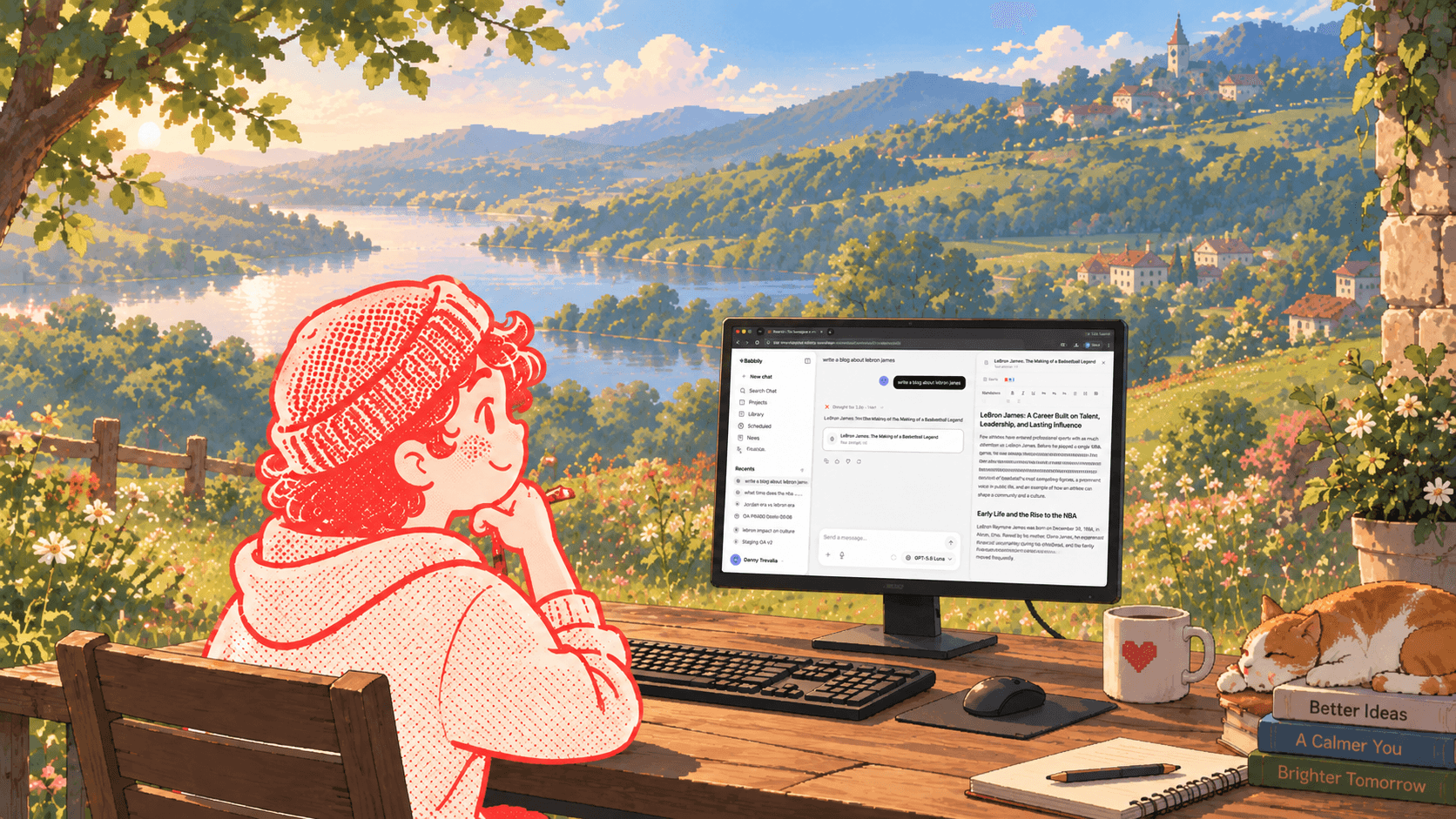
Make four 16:9 campaign scenes in our illustration style: a desert sunset, a surfer above the sea, a desk with a lake view and a set of pattern swatches. Then animate the desk scene.

Here are the four scenes, plus a 5-second clip of the desk scene.

0:05
Auto can make mistakes. Please double-check responses.

Animate the desk scene

Video · 5 seconds

Campaign scenesShare
Make four 16:9 campaign scenes in our illustration style: a desert sunset, a surfer above the sea, a desk with a lake view and a set of pattern swatches. Then animate the desk scene.

Here are the four scenes, plus a 5-second clip of the desk scene.

0:05
Auto can make mistakes. Please double-check responses.

Animate the desk scene

Video · 5 seconds

How images and video work

Built-in tools, in the chat you’re already in.

Ask in any chat

Ask for an image or video, or turn on Image generation or Video generation from the composer menu.

Describe it

Say what’s in the frame, the style and the shape. For video, describe the motion.

Refine or animate

Describe a change to edit an image, or attach one and say how it should move.

Keep what you make

Download it, save it to Library or open it fullscreen.

Under the hood

Images and video, made in the chat

Describe what you want in the chat you’re in, and Babbily picks the tool and makes it. Then edit it, animate it or save it.

No model to pick

Ask in any chat, or turn on Image or Video generation.

Edit or animate

Describe a change, or say how an image should move.

Keep what you make

Download it, save it to Library or open it fullscreen.

A described scene becomes an image in the chat, ready to animate or save.

Images and video in action

Prompt
Make four campaign scenes in our illustration style.
Uses
Image generation, a built-in tool
Made with
Auto
Campaign scenesShare
Make four 16:9 campaign scenes in our illustration style: a desert sunset, a surfer above the sea, a desk with a lake view and a set of pattern swatches. Then animate the desk scene.

Here are the four scenes, plus a 5-second clip of the desk scene.

0:05
Auto can make mistakes. Please double-check responses.
Make a set of images from one prompt
Describe the subject, style and shape. Images come square, portrait or landscape, and you can keep refining them in the chat.
Edit an image you already have. Attach an image, or point to one from earlier in the chat, and describe what should change.

Frequently asked questions

Make your first image

Describe a scene in any chat and see it appear right in the reply.